Head-up display mode
A head-up display (HUD) puts the figures in the driver's line of sight by reflecting a screen in the windscreen. A phone or a tablet laid flat under the windscreen does the same, if what it shows is mirrored: the reflection then reads the right way round.
speed, rpm = aa.Speedometer(87.3), aa.Tachometer(2400)
gear = aa.GearIndicator(4, hud=True)          # shown in the head-up display
cluster = aa.Cluster([speed, rpm, gear], hud=True, brightness=0.6)
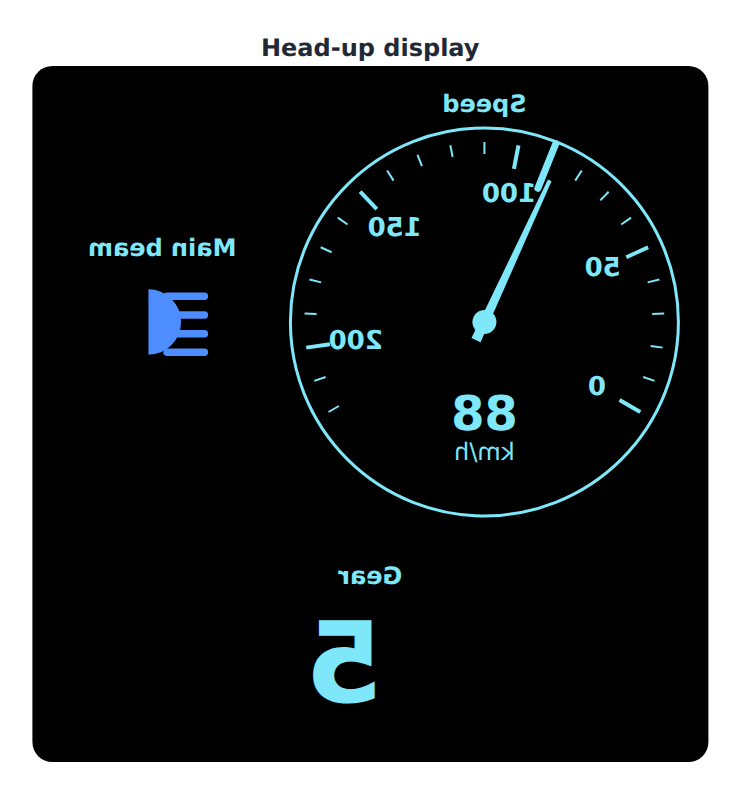
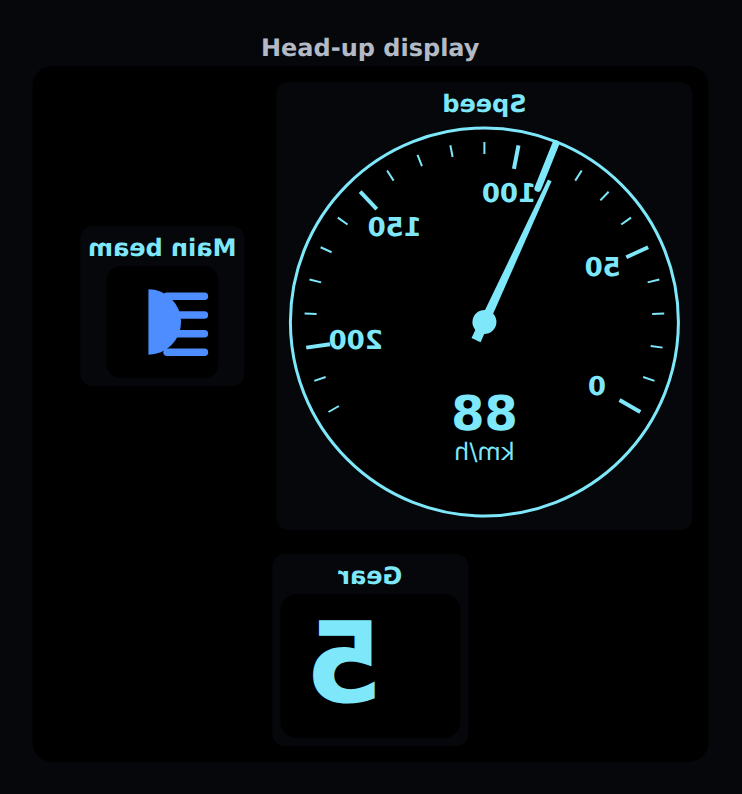
As drawn on the screen: mirrored, so that its reflection reads the right way round.
What the mode changes
| Aspect | Normal | HUD |
|---|---|---|
| Orientation | As drawn | Mirrored left to right (HUD-001) |
| Background | Theme | Black, so that only the figures reflect (HUD-002) |
| Colours | Theme | One bright colour for figures; tell-tale colours kept (HUD-003) |
| Content | All widgets | The speedometer, and the widgets whose own hud trait is true — a HUD shows little (HUD-004) |
| Motion | Animated needles allowed | No animation: needles jump to their value (HUD-005) |
| Brightness | brightness, 1 by default |
The same brightness, from 0.1 to 1, to lower at night (HUD-006) |
Tell-tales keep their colours in the HUD: a red warning stays red.
Setting it up
- Park first. Lay the device where it neither slides nor blocks a demisting vent or an airbag, then adjust the brightness until the reflection is readable without dazzling.
- A windscreen made for a factory HUD has a wedge-shaped interlayer that avoids a double image; an ordinary windscreen shows two faint reflections, one from each face. A reflective film removes the second.
- Check that the reflection does not hide the road: it belongs low in the field of view.
See the safety notice.